Editör zaten başka bir sekmede açık – oraya geçmen yeterli.
Keyboard shortcuts
All keys at a glance, taken straight from the program so the list is always right.
Bu bölüm henüz Türkçeye çevrilmedi. Aşağıda İngilizce metin var.
The shortcuts work as long as the workplane has the focus. While you type in a field they keep out of the way. On the Mac, Cmd applies wherever Ctrl is listed here.
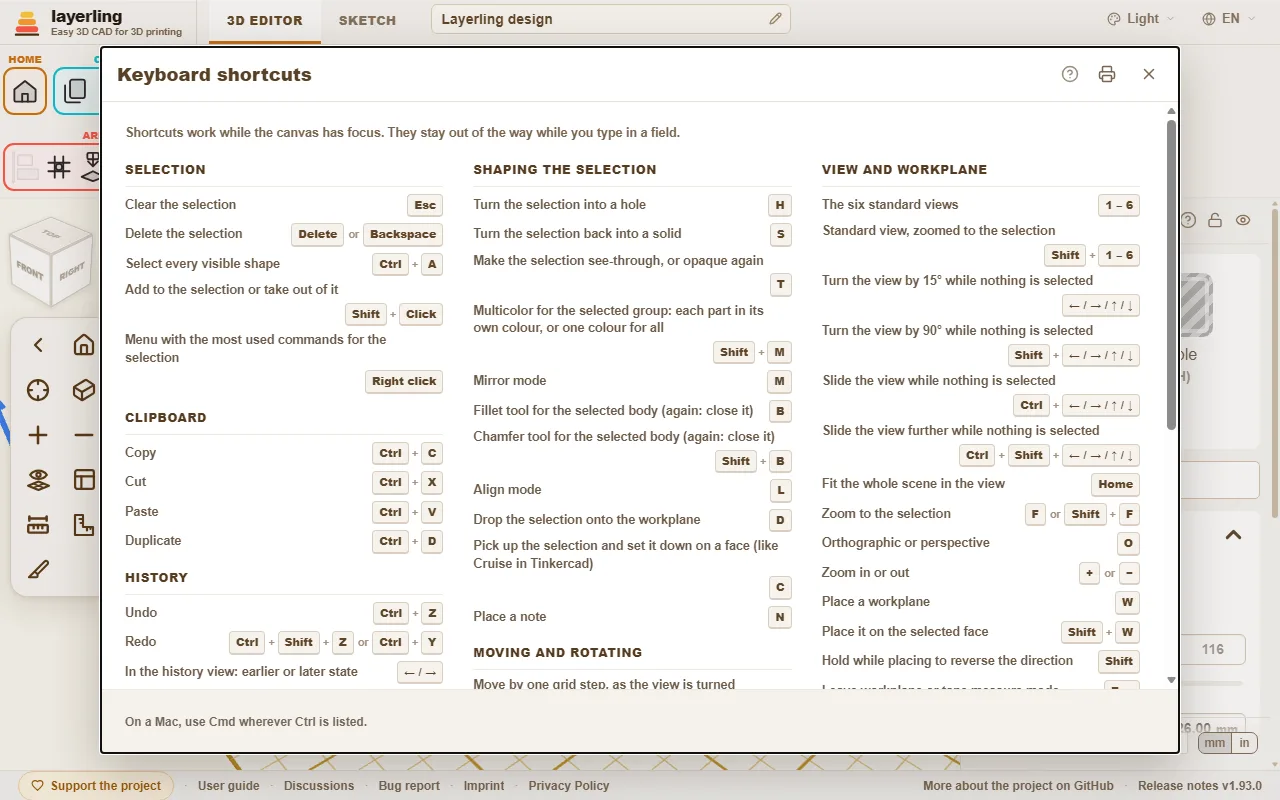
In the editor, “Klavye kısayolları” in the “Yardım” area opens the same list as a window. The printer button in the window (“Listeyi yazdır veya PDF olarak kaydet”) prints the list on its own, black on white, the whole list on one side of an A4 or Letter sheet in three columns, to keep at hand as a quick reference; the print dialog of the browser also offers to save it as a PDF.
The keyboard shortcuts window in the editor.
Command search
Can't find a tool? Press Ctrl+K or click the magnifying glass in the “Yardım” area, then type what you are looking for: a tool ("fillet", "mirror"), a shape ("cylinder") or a command ("export", "undo"). Move with the arrow keys and press Enter, or click the entry.
The search understands the English and the German word alike and ignores capital letters and umlauts: "aushoehlen" finds “İçini boşalt”.
Every entry shows the keys that do the same and the area of the toolbar it lives in, so you learn where it is.
Entries that are greyed out cannot run right now, mostly because nothing is selected. They stay in the list so the search still tells you where the tool is.
The guide you are reading has a search box too, at the top of every page: type a word or two and it lists the sections that contain all of them, with the matching words marked. Click one, or press Enter for the first, to jump straight there.
A shape's name adds that shape to the workplane, just like clicking it in the shapes menu.
With an empty field the search lists the commands you used last at the top.
The name of a body in your design finds that body and selects it, which helps in a design with many parts. Bodies only appear once you type.
It works in sketch mode as well, with the sketch tools.
Interactive Help
Cannot find where to read about a button or a field? Let the program take you there. Click the question mark in the “Yardım” area, or press Shift+F1. The pointer turns into a question mark, and whatever lies under it is outlined.
Click a button, a field, a switch, a handle, a group of the ribbon or the title bar of a window. It does not do what it normally does. A small window opens instead, with the name of the element, a short summary of the part of this guide that is about it, up to two more places that mention it, and “Kılavuzda aç”.
The help is about the element you pointed at, not about the whole window around it. An element without a name of its own uses the nearest one around it; inside a window it falls back on that window's question mark.
“Kılavuzda aç” opens the guide at that section in a new tab. There the section is outlined in colour, from its heading to its end, so you see where it starts and stops.
If the guide says nothing about the element, the window says so and offers “Kılavuzda ara”.
Esc, or the question mark again, leaves the mode. On a touch screen there is no hover: a tap on an element opens the window straight away.
The window moves by its title bar like the other windows. The program finds the section by the name of the element - the label on a button, the name of a field - because this guide writes every button as it is called in the program. It looks it up in the same search as the box at the top of each guide page, in the language you are using, and runs entirely in your browser.
Seçim
Esc
Seçimi temizle
Delete veya Backspace
Seçimi sil
Ctrl+A
Görünür her şekli seç
Shift+Tık
Seçime ekle veya seçimden çıkar
Sağ tık
Seçim için en çok kullanılan komutların menüsü
Pano
Ctrl+C
Kopyala
Ctrl+X
Kes
Ctrl+V
Yapıştır
Ctrl+D
Çoğalt
Geçmiş
Ctrl+Z
Geri al
Ctrl+Shift+Z veya Ctrl+Y
Yinele
← / →
Geçmiş görünümünde: önceki veya sonraki durum
Esc
Geçmiş görünümünde: güncel duruma dön
Dosya
Ctrl+I
İçe aktarma penceresini aç veya kapat
Ctrl+E
Dışa aktarma penceresini aç veya kapat
Ctrl+S
Tasarımı dosyasına kaydet
Gruplama ve görünürlük
Ctrl+G
Grupla
Ctrl+B
Paketle (birleştirmeden bir arada tut)
Ctrl+Shift+G
Grubu veya paketi çöz
E
Seçili grubu düzenle
Ctrl+L
Seçimi kilitle veya kilidini aç
Ctrl+H
Seçimi gizle
Ctrl+Shift+H
Gizlenen her şeyi göster
Ctrl+Shift+O
Nesne listesini göster veya gizle
Seçime şekil verme
H
Seçimi deliğe çevir
S
Seçimi yeniden katıya çevir
T
Seçimi saydam yap veya yeniden opak yap
Shift+M
Seçili grup için çok renkli: her parça kendi renginde veya hepsi tek renk
M
Aynalama modu
B
Seçili gövde için yuvarlatma aracı (tekrar: kapat)
Shift+B
Seçili gövde için pah aracı (tekrar: kapat)
L
Hizalama modu
D
Seçimi çalışma düzlemine indir
C
Seçimi kaldır ve bir yüzeye koy (Tinkercad'deki Cruise gibi)
N
Not yerleştir
Taşıma ve döndürme
← / → / ↑ / ↓
Görünüm nasıl döndürülmüşse ona göre bir ızgara adımı taşı
Shift+← / → / ↑ / ↓
Beş ızgara adımı taşı
Ctrl+↑ / ↓
Seçimi yükselt veya alçalt
R
45° döndür
Shift+R
22,5° döndür
Shift
Sürüklerken basılı tut: sadece X veya Y boyunca taşı
Alt+Sürükle
Bir kopya sürükle, orijinal yerinde kalır
Alt
Sürüklerken bir kez bas: diğer şekillere yapışmayı durdur
Alt+Enter
Şeklin yanında boyut yazarken: karşı kenardan değil ortadan büyüt
Görünüm ve çalışma düzlemi
1 – 6
Altı standart görünüm
Shift+1 – 6
Seçime yakınlaştırılmış standart görünüm
← / → / ↑ / ↓
Hiçbir şey seçili değilken görünümü 15° döndür
Shift+← / → / ↑ / ↓
Hiçbir şey seçili değilken görünümü 90° döndür
Ctrl+← / → / ↑ / ↓
Hiçbir şey seçili değilken görünümü kaydır
Ctrl+Shift+← / → / ↑ / ↓
Hiçbir şey seçili değilken görünümü daha fazla kaydır
Home
Tüm sahneyi görünüme sığdır
F veya Shift+F
Seçime yakınlaştır
O
Ortografik veya perspektif
+ veya −
Yakınlaştır veya uzaklaştır
W
Çalışma düzlemi yerleştir
Shift+W
Seçili yüzeye yerleştir
Shift
Yönü ters çevirmek için yerleştirirken basılı tut
Esc
Çalışma düzlemi veya şerit metre modundan çık
Yardım
Ctrl+K
Komut aramayı aç
Shift+F1
Etkileşimli yardımı aç veya kapat
Eskiz modu
Ctrl+K
Komut aramayı aç
Shift+F1
Etkileşimli yardımı aç veya kapat
Esc
Zinciri bitir, seçimi temizle
Delete veya Backspace
Seçili öğeyi sil
Ctrl+C
Kopyala
Ctrl+X
Kes
Ctrl+V
Yapıştır
Ctrl+D
Çoğalt
Ctrl+Z
Geri al
Ctrl+Shift+Z veya Ctrl+Y
Yinele
R
Kapalı bir eskizi 45° döndür
L
Referans resmini kilitle veya kilidini aç
Home
Tüm eskizi görünüme sığdır
F veya Shift+F
Eskizde seçime yakınlaştır
+ veya −
Eskizi yakınlaştır veya uzaklaştır
Alt+Enter
Bir çizginin uzunluk alanında: iki yöne büyüt
← / → / ↑ / ↓ veya Shift+← / → / ↑ / ↓
Seçili noktaları, çizgileri veya resmi bir ızgara adımı taşı (Shift: daha büyük adım)
← / → / ↑ / ↓ veya Shift+← / → / ↑ / ↓
Tıklanan bir eğri tutamağını bir ızgara adımı taşı (Shift: daha büyük adım)
1 veya 2 veya 3 veya 4
Bir çizim aracı seç: 1 Çizgi, 2 Bezier eğrisi, 3 Yumuşak eğri, 4 Nokta ekle veya kaldır (çizgi çizilmiyorken)
Shift
Çizerken: yeni çizgiyi 15°'lik adımlarla yakala
Shift
Sürüklerken: hareketi tek eksende tut
0-9 veya < veya Tab veya Enter
Çizerken: uzunluğu yaz, açı için "<" veya Tab, Enter noktayı koyar